1 Add the bot
Open the install link, pick your server from the dropdown, and click Authorise. Only servers where you have Manage Server will appear.
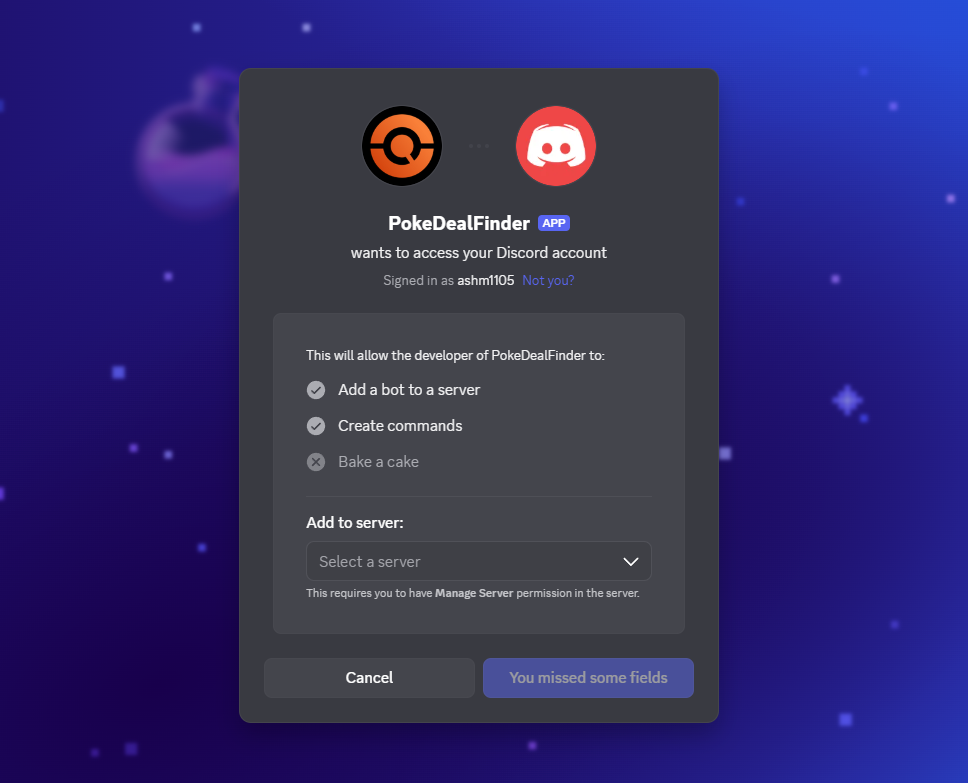
- View Channel — so it can see the channels you wire up
- Send Messages — so it can post deals
- Embed Links — deals are posted as rich embeds
2 Choose feeds for a channel
Go to the channel you want deals in and run /feeds setup.
You’ll get a private menu — only you can see it — with feeds grouped by market.
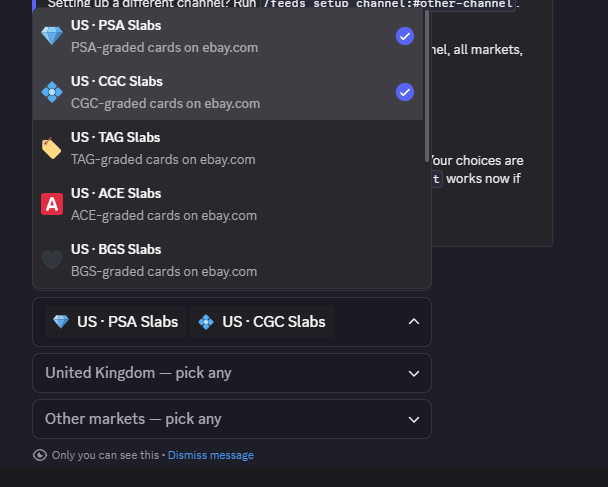
Setting up a different channel? Pass it as an option: /feeds setup channel:#uk-deals
Run it once per channel. Each keeps its own feeds and its own filters, so a typical server ends up looking like this:
3 Filter what comes through
Some feeds are busy — US · All Cards is every US card deal we find,
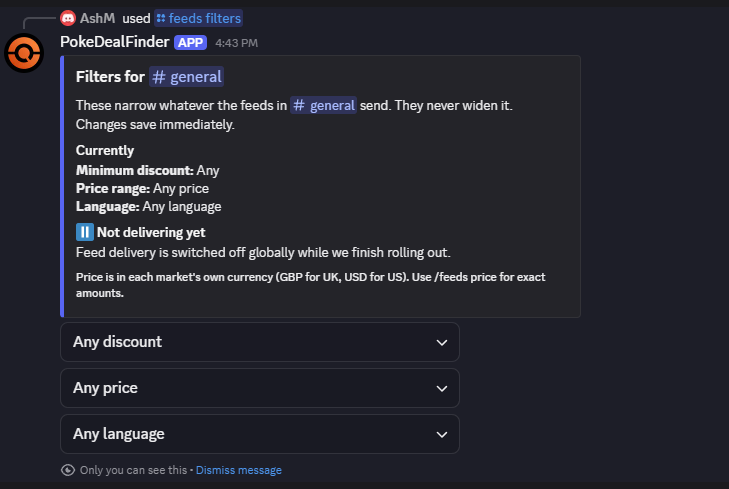
which runs to hundreds a day. Run /feeds filters in the channel to narrow it.
| Filter | What it does |
|---|---|
| Minimum discount | Only post deals at least this far below market value. The most effective way to cut volume — 25–30% is a good start. |
| Price range | Only post listings within a band. Useful for a “big hits” channel (500+) or to filter out bulk (under 25). |
| Language | English, Japanese or Chinese sets only. |
Or set them directly without the menu:
/feeds min-discount percent:30
/feeds price minimum:50 maximum:500
/feeds language language:English
4 Check it’s working
Run /feeds test to post a real sample deal into the channel.
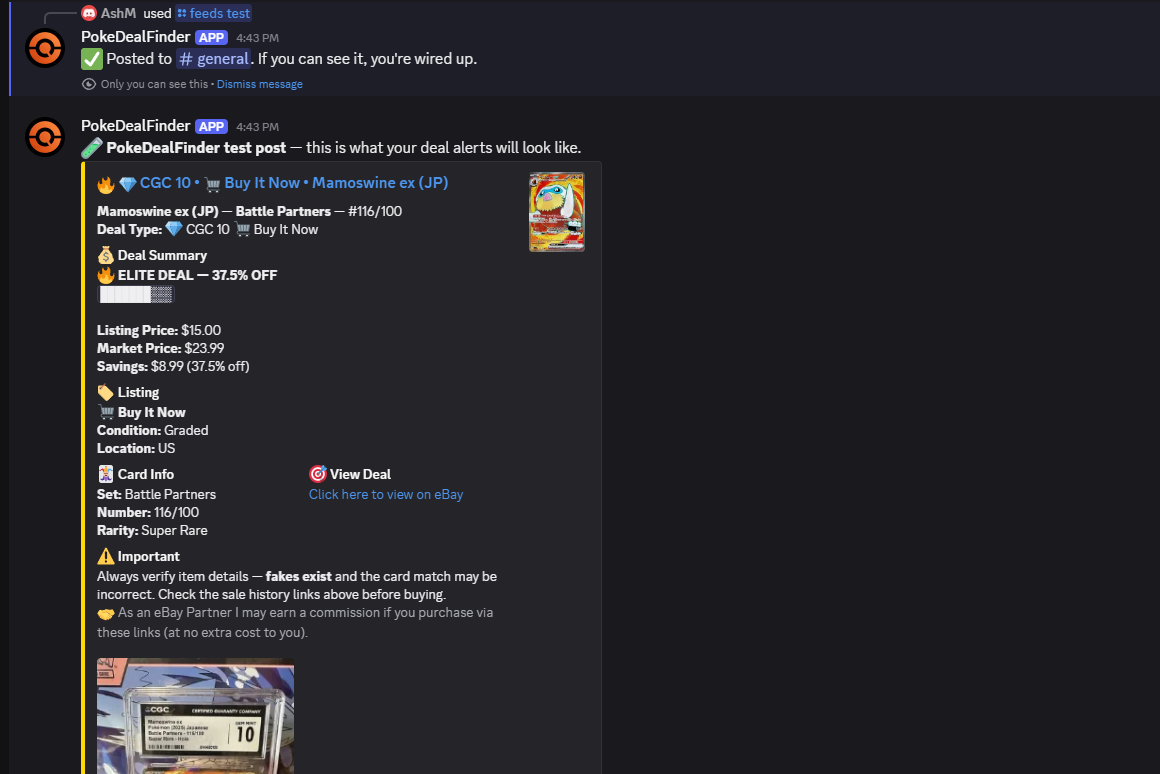
The sample always respects your filters — if nothing recent matches, it tells you that instead of showing a deal you’d never actually receive.
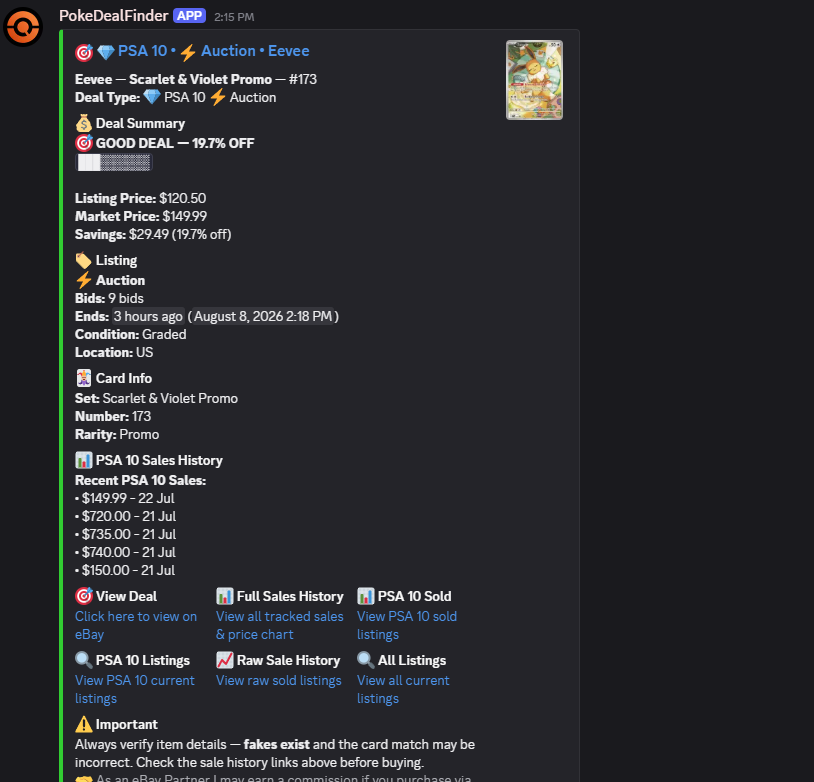
5 Personal deal DMs
Server feeds post in channels. Any member — no admin permission needed — can also get deals sent to them directly, filtered to their own taste.
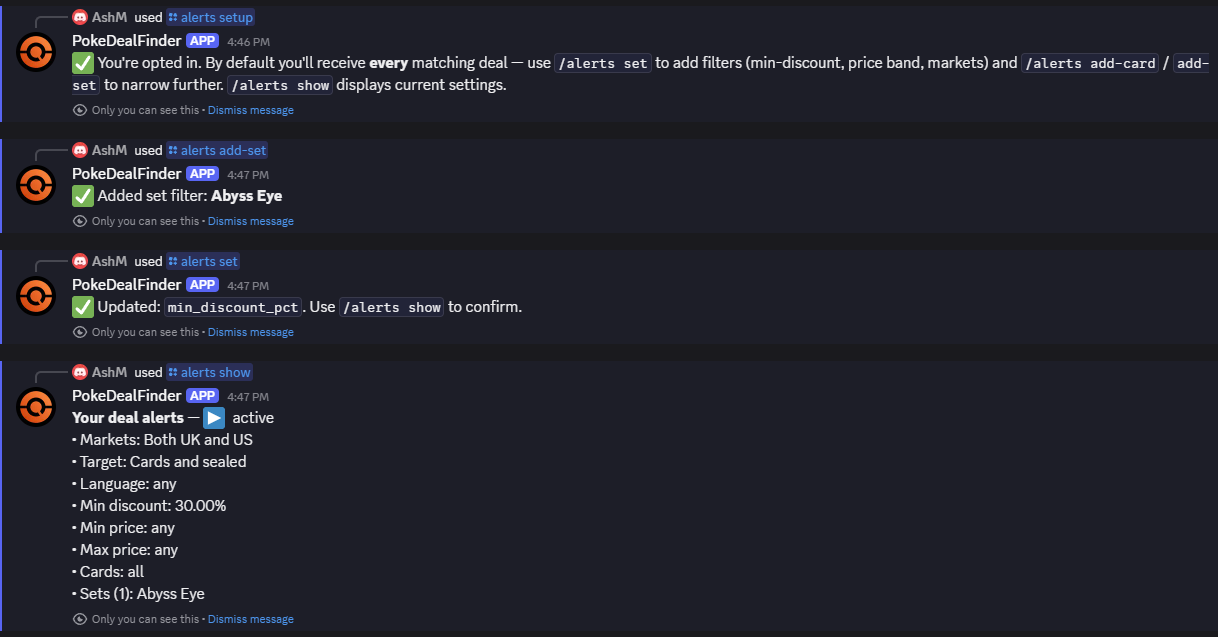
/alerts setup opts you in; /alerts set narrows it down.| Command | Does |
|---|---|
/alerts set min_discount:30 | Only deals 30%+ below market |
/alerts set min_price:50 max_price:500 | Only listings in that price band |
/alerts set markets:UK | One market only |
/alerts set targets:sealed | Sealed product only, or cards only |
/alerts set language:Japanese | One set language only |
/alerts add-card | Follow a card. Pick ✨ Any Charizard for every printing, or one exact card |
/alerts add-set | Follow a whole set |
/alerts show | See your current filters |
/alerts pause hours:24 | Mute for a while |
/alerts stop / start | Turn DMs off/on, keeping your filters |
/alerts delete | Permanently delete everything we store about you |
All commands
| Command | Who | Does |
|---|---|---|
/feeds setup | Manage Server | Choose which feeds a channel receives |
/feeds filters | Manage Server | Discount, price and language |
/feeds min-discount | Manage Server | Set the discount floor directly |
/feeds price | Manage Server | Set an exact price range |
/feeds language | Manage Server | Restrict to one set language |
/feeds list | Manage Server | Every channel configured here |
/feeds test | Manage Server | Post a sample deal |
/feeds check | Manage Server | Diagnose a quiet channel |
/feeds remove | Manage Server | Turn a channel off |
/alerts … | Anyone | Personal deal DMs — see above |
Troubleshooting
Nothing is posting
Run /feeds check in the channel. It names the exact problem — usually
a missing permission, and it tells you which one and where to fix it.
- Missing permission. The bot needs View Channel, Send Messages and Embed Links in that specific channel. Channel-level overrides beat server-level ones, so a private channel often needs the bot’s role adding explicitly.
- Filters too tight. A 50% floor plus a narrow price band may match nothing for days. Loosen one and see.
- No feeds enabled.
/feeds listshows the channel with no feeds if setup was never finished.
Too many posts
Raise the floor with /feeds min-discount percent:35, or swap a firehose
feed for a narrower one. The All Cards feeds are deliberately unfiltered —
the per-grader feeds are much quieter.
I removed the bot by accident
Just re-add it. Your configuration is kept for 30 days after removal, so everything comes back exactly as it was.
Commands aren’t showing up
Newly added bots can take up to an hour for their commands to appear. Fully quitting and reopening Discord usually forces a refresh.
Deal links are eBay affiliate links — we may earn a commission at no extra cost
to you. Prices and availability change fast, so always check the listing before
buying.
Privacy Policy ·
Terms of Service ·
Get help in our Discord